> For the complete documentation index, see [llms.txt](https://docs.vox.bot/llms.txt). Markdown versions of documentation pages are available by appending `.md` to page URLs; this page is available as [Markdown](https://docs.vox.bot/getting-started/first-tts-message.md).

# Send your first TTS message

Set up VoxBot TTS playback in your streaming software, send your first !tts command from a connected channel, and review the result in Message History.

Use these steps to play a test TTS message through your streaming software.

{% hint style="info" %}
This guide assumes you have a VoxBot account, a connected streaming channel, and streaming software that supports browser sources.
{% endhint %}

## 1. Confirm your channel connection

Open [Account](https://vox.bot/dashboard/account). The channel you plan to test should appear under the **Connected** section.

You do not need to start a stream when you test a Twitch or Kick channel. For YouTube, start a public live stream and make sure live chat is enabled. Other platforms may also need an active stream before their chat is available.

<figure><img src="https://99517040-files.gitbook.io/~/files/v0/b/gitbook-x-prod.appspot.com/o/spaces%2FRLilJ2T36zg40NjFQOt8%2Fuploads%2Fgit-blob-e777a202f4991d7df0913cda80e3abf5be575a87%2Fvoxbot-first-message-connected-youtube.png?alt=media" alt="The VoxBot Account page with a connected YouTube channel highlighted"><figcaption><p>The VoxBotDev account has a YouTube channel under the <strong>Connected</strong> section. Your connected platform may be different.</p></figcaption></figure>

## 2. Check the default command

Open [Commands](https://vox.bot/dashboard/tts/commands). The default **Male** voice uses `!tts`. Confirm that the switch in the **Status** column is on.

The command uses the **All** permission by default. If you selected **VIP**, **Sub**, or **Mod**, test from a viewer account that has the selected role.

<figure><img src="https://99517040-files.gitbook.io/~/files/v0/b/gitbook-x-prod.appspot.com/o/spaces%2FRLilJ2T36zg40NjFQOt8%2Fuploads%2Fgit-blob-ec05b3758f89b860de7f9c173a16cdd02f762bbc%2Fvoxbot-first-message-default-command.png?alt=media" alt="The VoxBot Commands page with red outlines around the default !tts command and its enabled switch"><figcaption><p>The exclamation mark and the text in the command box combine to make the <code>!tts</code> command.</p></figcaption></figure>

## 3. Add the browser source

1. Open [Playback Settings](https://vox.bot/dashboard/tts/playback).
2. Under **Browser Source**, select **Copy**.
3. Add a browser source to your streaming software.
4. Paste the copied URL.
5. Follow the setup instructions shown for OBS Studio, Streamlabs Desktop, or Meld.

<figure><img src="https://99517040-files.gitbook.io/~/files/v0/b/gitbook-x-prod.appspot.com/o/spaces%2FRLilJ2T36zg40NjFQOt8%2Fuploads%2Fgit-blob-e71ac718be7ff2b5f4c3fa7d8b97bbf3302fdbce%2Fvoxbot-first-message-browser-source.png?alt=media" alt="VoxBot Playback Settings with a red outline around the TTS browser source URL and Copy button"><figcaption><p>Copy the TTS browser source URL, then follow the setup steps for your streaming software.</p></figcaption></figure>

{% hint style="info" %}
The TTS browser source URL does not need to be kept private. You can leave it visible when you share a setup screenshot with support.
{% endhint %}

## 4. Send the test message

In the chat for your connected channel, send:

```
!tts Hello stream
```

VoxBot should create the Male voice audio and play it through the browser source. Watch the audio mixer in your streaming software while the message plays.

## 5. Check Message History

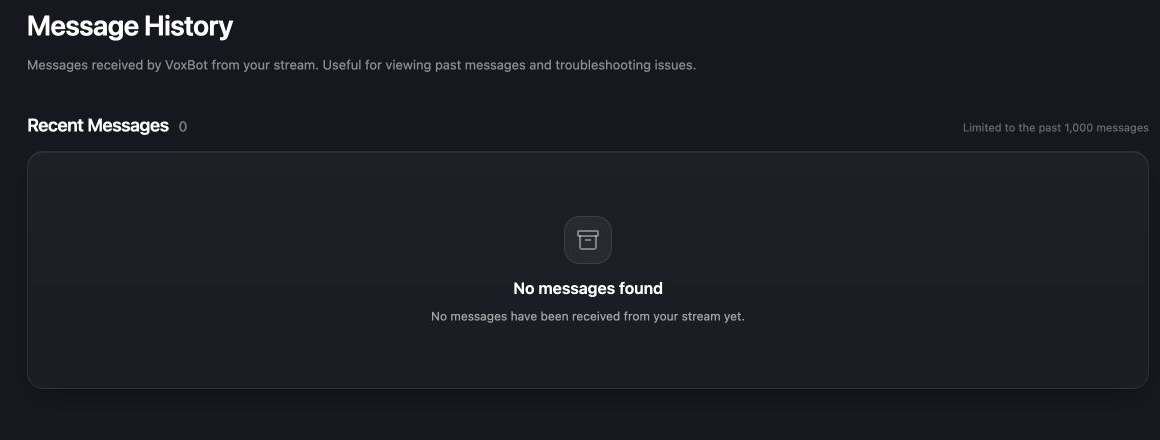
Open [Message History](https://vox.bot/dashboard/tts/history) after you send the test. The page shows whether VoxBot received the chat message and whether it generated TTS.

<figure><img src="https://99517040-files.gitbook.io/~/files/v0/b/gitbook-x-prod.appspot.com/o/spaces%2FRLilJ2T36zg40NjFQOt8%2Fuploads%2Fgit-blob-b525553c13134432b227aa4b29eb28edb7a41b16%2Fvoxbot-first-message-message-history.png?alt=media" alt="The VoxBot Message History page showing an empty Recent Messages panel"><figcaption><p>Your test appears under <strong>Recent Messages</strong> after VoxBot receives it. <strong>No messages found</strong> means no channel message has arrived yet.</p></figcaption></figure>

Use the result to choose the next check:

* **The message is missing:** Confirm that the correct channel is under **Connected**. If the platform only has chat while you are live, confirm that the stream is live and not private. Reconnect the channel if needed.
* **The message appears without TTS:** Check the command spelling, **Status**, viewer permissions, cooldowns, message limits, **TTS Enabled**, and moderation settings.
* **The message shows generated TTS but you cannot hear it:** VoxBot generated the audio. Check that the browser source is in the active scene, visible, unmuted, and routed to the correct output in your streaming software.

If those checks do not solve the problem, contact VoxBot support with a screenshot of **Message History** and your streaming-software audio mixer.

## FAQ

<details>

<summary>Why does !tts appear in chat but not in Message History?</summary>

VoxBot is probably not receiving chat from that channel. Confirm that the correct channel appears under the **Connected** section. If the platform requires an active chat, also confirm that the stream is live and public.

</details>

<details>

<summary>Why is my message in Message History without TTS?</summary>

The message reached VoxBot, but a setting stopped TTS generation. Check the command, permissions, limits, cooldowns, **TTS Enabled**, and moderation rules.

</details>

<details>

<summary>Why does Message History show generated TTS when I hear nothing?</summary>

VoxBot generated the audio, so check your streaming software. Confirm that the VoxBot browser source is visible in the active scene, its audio mixer channel is not muted, and audio monitoring is configured correctly.

</details>

<details>

<summary>Can I use a different voice for my first test?</summary>

Yes. Open the **Voice Library**, add a voice, and use the command shown for it. The default `!tts` command is the quickest test.

</details>

## Still no audio?

Email <support@vox.bot> or join the [VoxBot Discord](https://discord.gg/GtU5XqhRSq). Include what **Message History** shows so the team can start with the right part of the setup.